Entry that keeps moving, even when the internet doesn't.
The MeGoShow Check-In App is a fast, offline-capable scanner built for the reality of event day — not the ideal version of it.
The MeGoShow Check-In App is in final store review. Need launch updates or early-access details?
Contact the launch teamValid
Jamie Rivera
VIP Section B · Seat 14
Gate 2 · 8:14 PM
The one thing that matters most
Venue WiFi always fails at the worst possible moment.
The MeGoShow Check-In App downloads your ticket manifest before doors open and validates scans locally — no network connection required. When WiFi comes back, everything syncs automatically.
Your door doesn't stop because your connection did.
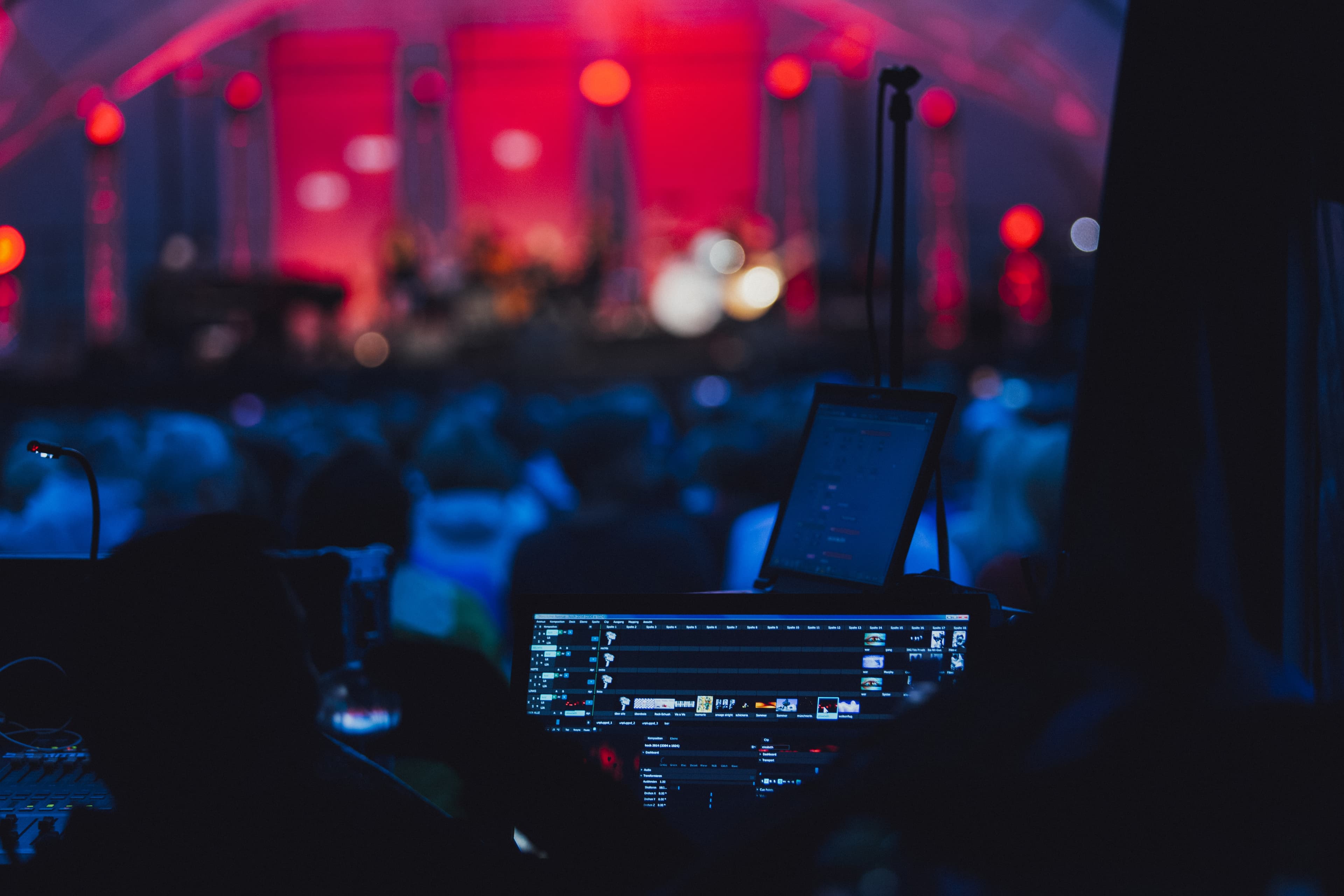
Used at events like this
Thousands of doors. Zero failures.
Core features
Built for the job, not the demo.
Instant scan feedback
Validates a ticket in under a second and fills the screen with the result — green for valid, red for invalid, yellow for already scanned. Readable from across a corridor in a dark venue.
Offline mode — built in, not bolted on
Before doors open, the app downloads your complete ticket list. Every scan runs against a local copy. Offline scans queue and sync automatically when connectivity restores.
Multiple gates, one dashboard
Run VIP, GA, and balcony entry simultaneously from separate devices. Each gate only accepts its assigned ticket tiers. Gate counts feed into your live capacity view in real time.
Will-call and guest list
Search your guest list by name at the door — fuzzy matching handles the typos and phonetic variations that always show up in will-call. One tap to check in. No paper, no spreadsheet.
Live capacity view
See how many people are inside at any moment — broken down by section and ticket tier. Get a heads-up at 85% capacity. At 95%, the app prompts you to start managing entry flow.
Reserved seat direction
Each validated ticket shows the seat assignment on screen — section, row, seat number. Staff can direct guests to the right area without checking a separate list.
Scan result states
What staff see at the door.
Three full-screen states — readable in any lighting, from any angle.
Jamie Rivera
VIP — Section B
Scanned · Gate 2
8:14 PM
Valid ticket
Green full-screen flash. Name, ticket tier, section, and scan time. Fades to camera after 2 seconds.
Marcus Chen
GA Floor
First scanned · Gate 1 · 7:52 PM
Already scanned
Yellow flash. Name, original scan time, and first gate. Helps staff spot a shared or duplicated ticket.
Ticket not valid
Wrong event
Contact supervisor
Invalid ticket
Red flash. Short reason displayed. Staff can escalate without holding up the line.
Process
How scanning works.
Before the event
- Open the app and select your event.
- Tap Download tickets — pulls a complete encrypted copy of your ticket list.
- Takes 10–30 seconds for most events. Refresh any time to pick up last-minute sales.
At the door
- Point the camera at the buyer's ticket — printed, on screen, or in Apple / Google Wallet.
- Result shows in under a second. Camera stays live — no button press between scans.
- At a 3-second average, one device handles 20 people per minute.
During the event
- Scans sync to the server as they happen when connected.
- Offline scans queue automatically and sync when connectivity restores.
- Your organizer dashboard shows live attendance as data comes in.
After the event
- Every scan is logged — valid entries, duplicates, invalid scans, gate overrides.
- Post-event report: attendance by tier, no-show rates, peak entry times.
- Gate-by-gate throughput breakdown available in your dashboard.

Real-world design
Designed for event day reality.
Competitors describe features. This section describes the conditions under which the feature has to work.
Dark venues
Full-screen color flash and high-contrast display designed for dark rooms. Camera auto-adjusts for low-light QR scanning.
Loud environments
Every scan triggers haptic feedback — a distinct vibration pattern for valid, duplicate, and invalid. Staff don't need to hear the result.
Fast entry lines
No button press between scans. The camera stays active and continuously scans. One device handles 20 people per minute.
Temporary staff
PIN-based gate authentication means a staff member can be scanning in under 60 seconds — no app account, no password reset.
Multiple simultaneous events
If your venue runs multiple events on the same night, the app keeps them cleanly separated. Staff select their event and gate at login.
Minimal permissions
Camera access only. The app does not request location, contacts, or any other device permission.
Compatibility
Device and setup requirements.
Works on
- ✓ iPhone running iOS 15 or later
- ✓ Android phone running Android 10 or later
- ✓ iPad (useful for will-call and capacity management)
Staff authentication
- ✓ Invite staff from the organizer dashboard — they log in with their MeGoShow credentials
- ✓ Or generate a gate-specific PIN and hand it to temporary staff — no account creation required
- ✓ Permissions required: camera access only. Nothing else.
Progressive Web App option
The scanner also runs as a Progressive Web App. Staff can install it from any modern mobile browser — useful for temporary staff, last-minute additions, or venues with device restrictions. No app store required.
FAQ
Common questions.
Do I need the app to use MeGoShow?
No. The Check-In App is optional — you can manage check-in from any web browser using the organizer dashboard. The app is faster and more reliable for high-volume door scenarios.
Can I use my own barcode scanner hardware?
Yes. MeGoShow supports USB and Bluetooth HID barcode scanners. Connect one to a tablet or laptop running the organizer dashboard and scan directly — it behaves identically to the mobile app.
What happens if a buyer's phone dies at the door?
If the buyer has a printed ticket or a screenshot, staff can scan it normally. If they have nothing, staff can do a manual will-call lookup by name or email from the app.
Does the app work for reserved seating and GA events?
Yes. For reserved seating events, the valid scan result shows the seat assignment so staff can direct the buyer. For GA events, the result shows the zone and tier.
How many devices can I run simultaneously?
There's no limit on the number of active scanning devices per event. All devices share the same attendance counter in real time.
Can staff see buyer payment or personal information?
No. The scan result shows the buyer's name, ticket tier, and seat assignment — nothing else. Payment details are never visible to door staff.
What if the event is postponed after staff download the manifest?
If you postpone or cancel the event from the dashboard, all open manifests on active devices are immediately flagged. Staff will see a notice on next open or scan attempt.
Set up once. Scan confidently every time.
The Check-In App is included with every MeGoShow event — no add-on, no per-scan fee, no separate subscription. Download it, connect your event, and you're ready.
The MeGoShow Check-In App is in final store review. Need launch updates or early-access details?
Contact the launch team